iPhone Duo
Short answer
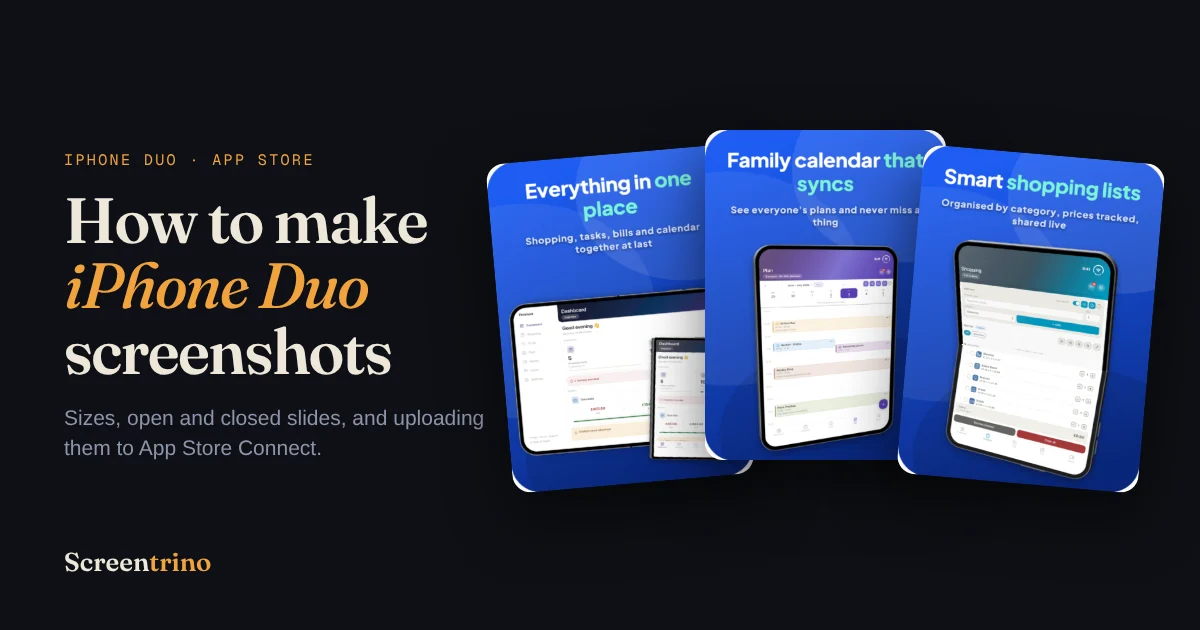
Apple takes iPhone Duo screenshots at 2007 × 2853 pixels (inner display) or 1398 × 2034 (outer display), portrait or landscape, up to 10 per language. Capture them from the iPhone Duo simulator in Xcode 27.1 or a real Duo, turn them into slides with headlines, and upload them to the iPhone Duo set in App Store Connect. From April 2027 they are required for apps built with the iOS 27.1 SDK or later.
In this post
iPhone Duo screenshot sizes
iPhone Duo has two displays, and Apple lists a screenshot size for each one. Every image must match one of these sizes exactly.
| Display | Portrait | Landscape |
|---|---|---|
| Inner display (open) | 2007 × 2853 | 2853 × 2007 |
| Outer display (closed) | 1398 × 2034 | 2034 × 1398 |
Both sizes fill the same iPhone Duo set in App Store Connect. You upload 1 to 10 screenshots per language, as JPEG or PNG with no transparency. App preview videos for iPhone Duo use 886 × 1920 (portrait) or 1920 × 886 (landscape). All the other Apple sizes are in the App Store screenshot sizes guide.
When you need them
Apple’s screenshot specifications say iPhone Duo screenshots become required from April 2027 for any app using the iOS 27.1 SDK or later. Until then they are optional, but worth adding early: when you submit iPhone Duo screenshots, your App Store product page shows a badge telling people your app is optimised for iPhone Duo.
Step 1: Capture real screenshots
Apple’s review guidelines ask for screenshots that show your app in use, so a normal iPhone screenshot stretched to Duo size is not good enough. Apple suggests two ways to get accurate ones:
- The iPhone Duo simulator in Device Hub, which comes with Xcode 27.1. Its screenshots come out at exactly the App Store Connect sizes, and you can open, close, fold and rotate the device to test every layout.
- A real iPhone Duo, if you have one.
Take both kinds while you are there: the open inner display, where your app should look like a natural extension of its iPad layout, and the closed outer display, which looks like a familiar iPhone screen. Having both gives you far more options for your slides.
Step 2: Decide what each slide shows
A Duo slide can show more than one screen, which is the fun part. Some ideas that work well:
- Open: the big inner display, perfect for calendars, dashboards and anything with a sidebar.
- Closed: the outer display, for quick actions you would do one-handed.
- Both together: the open Duo with the closed one beside it, for example an open task next to the to-do list, or a loyalty card list with the barcode on the closed screen.
- Half open: folded part-way, so the Duo stands like a small laptop.
- Landscape: wide screenshots, with the closed screens still available beside them.
Keep the usual screenshot rules: one clear benefit per slide, a short headline, and your strongest feature first. The screenshot mistakes post covers the common traps.
Step 3: Export at one size
Because both sizes fill the same iPhone Duo set, you only need one of them. If you upload both, the second simply replaces the first. We recommend the inner display size, 2007 × 2853: it is the larger image and shows off the open layout that makes the Duo special. The slides can still show the closed Duo inside them.
Step 4: Upload to App Store Connect
Open your app’s version page, go to App Previews and Screenshots, choose the iPhone Duo tab and drag in your images, one language at a time. With many languages that gets slow, so you can also upload through the App Store Connect API.
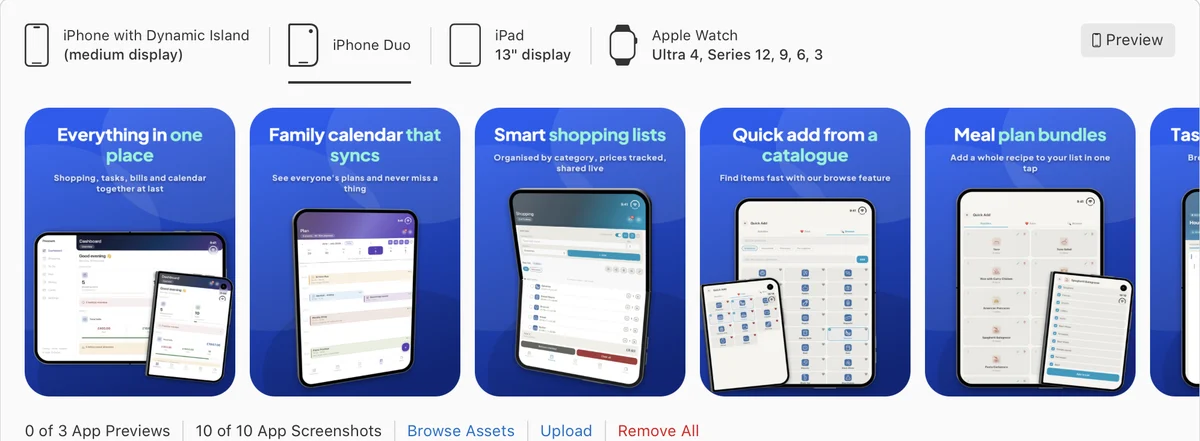
We tested the API route on our own live app, Proxium: all 110 iPhone Duo screenshots (10 slides in 11 languages) uploaded on the first try, in about 10 minutes.
Mistakes to avoid
- Stretching iPhone screenshots. The Duo’s inner display is almost square compared with a phone, so stretched screens look wrong and do not show your app as it really runs.
- Uploading more than 10 per language. Apple takes 1 to 10 screenshots per set.
- Transparent PNGs. Apple rejects images with an alpha channel.
- Changing Apple’s device art. If you use Apple’s official iPhone Duo bezel, Apple’s marketing guidelines ask you to show it as provided, without changes.
Doing it in Screentrino
Screentrino treats iPhone Duo as one device: drop your open and closed screenshots on the start page and it sorts them by size. Every template already shows your Duo screens. In the Device panel each slide can show the Duo open, closed, both together or half open. Export the iPhone Duo set at 2007 × 2853, or send it straight to App Store Connect in every language.
Watch it step by step in the iPhone Duo video guide, and see how to upload to App Store Connect for the one-time API key setup.
Ready to make your iPhone Duo set? Drop in your screenshots and pick a look.
Open ScreentrinoSources
Keep reading
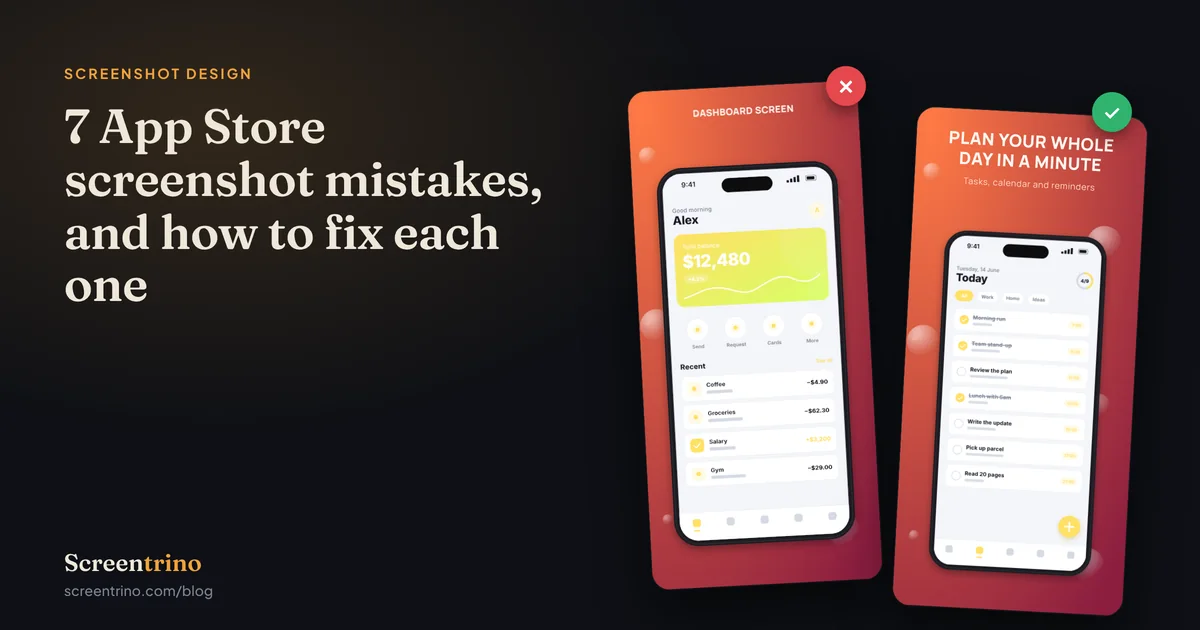
7 App Store screenshot mistakes (and how to fix each one)
Seven common App Store and Google Play screenshot mistakes, from wasted first slides to tiny captions, with a practical fix for each one.
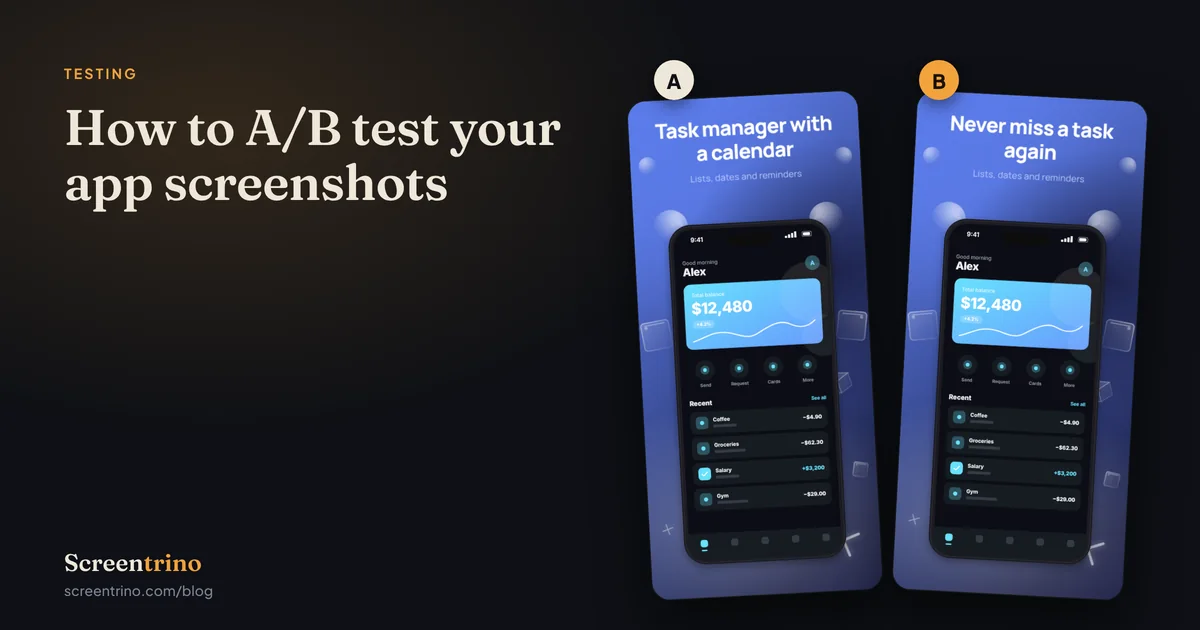
How to A/B test your app screenshots on the App Store and Google Play
How Apple product page optimization and Google Play store listing experiments work, how they differ, and how to run a screenshot test properly.