Localisation
Short answer
Apple recommends localising screenshots for every market where your app is available. You do not need to start with all of them: begin with the two or three languages where you already get traffic, check the translations, then expand.
In this post
Why screenshots need localising
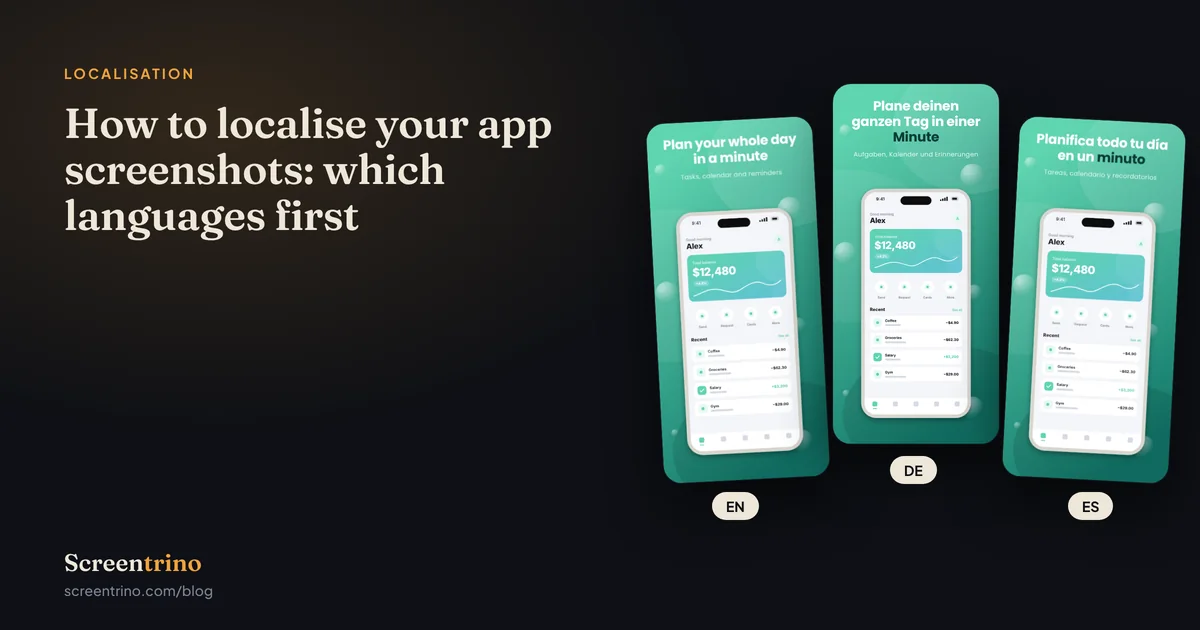
Apple’s guidance says that if your app is available in multiple languages, you should localise your description, keywords, app previews and screenshots for each market. Screenshots are often the first thing people look at, and a headline in a language they do not read gives them no reason to look further.
How many languages are there to choose from?
Apple’s App Store localisations page lists 50 languages and regional variants, including English (U.S.), English (U.K.), French (Canada), Portuguese (Brazil), Spanish (Mexico), Arabic, Hindi, Japanese, Korean and Ukrainian. Screentrino supports 46 languages in one project, so you can keep a single design and add wording for each market.
A simple way to choose where to start
- Look at your traffic. App Analytics in App Store Connect and the Play Console show where your visitors and downloads come from. Languages that already send you visitors are the safest first choices.
- Pick two or three. A short list is easier to check and to test. You can add more later.
- Choose languages you can check. If you cannot read a language, ask a native speaker to look at the headlines before you publish. A wrong word in a headline does more harm than an English one.
- Measure before you expand. Apple lets you localise the treatments in a product page test, so you can compare a localised page with the original. See how to A/B test your screenshots.
Practical points when you translate headlines
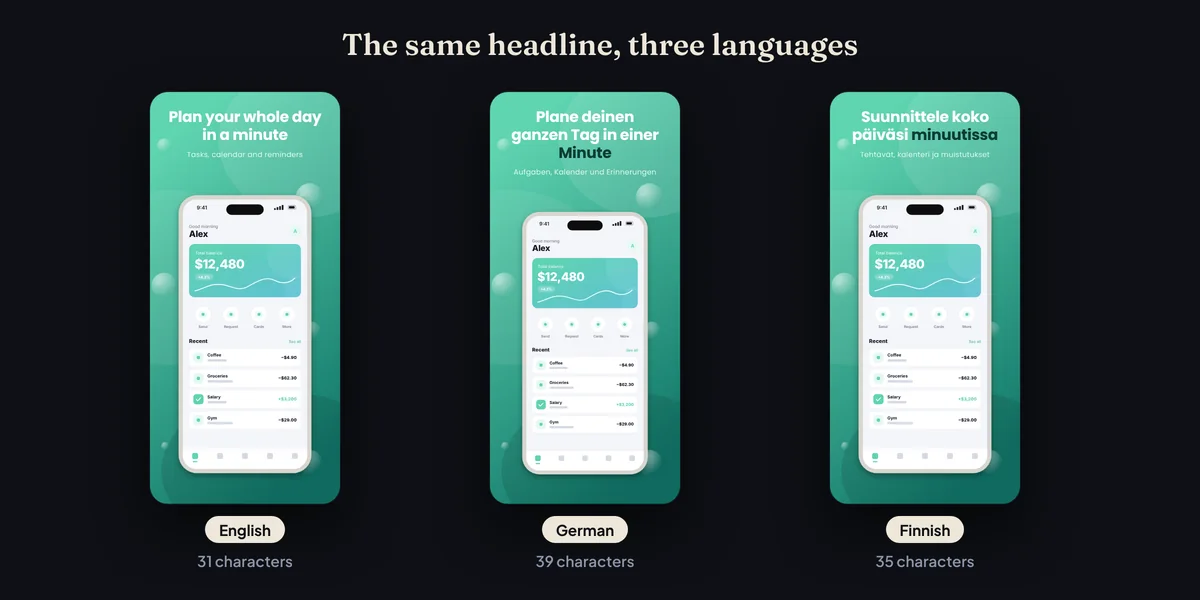
- Leave room. Some languages need more space than English for the same idea, so do not design headlines that only just fit.
- Check right-to-left languages. Arabic and Hebrew are on Apple’s list. Look at the layout as well as the words.
- Translate the idea, not the words. A benefit-led headline often needs rewording, not a literal translation.
- Match the app screens. If your app interface is localised, capture the screens in that language too, so the headline and the screen agree.
Doing it in Screentrino
Add the languages you want to a project and type the wording for each. The app can also translate with AI, either one language at a time or all languages in one go, and you can edit every translation afterwards. Because the layout stays the same, you are not redesigning the set for each market. When you are ready, the upload panels for App Store Connect and Google Play let you choose which languages to send. Start from any of the templates.
AI translation is a good first draft, not a final check. Always have someone who reads the language look at the result.
Ready to build your own set? Pick a look, drop in your screenshots and export every store size.
Open ScreentrinoReady to do it? How to translate your app screenshots covers how each store handles languages and how to check every one.
Sources
Store rules and limits checked on 19 October 2026. Apple and Google change them from time to time, so check the linked pages for the latest.
Keep reading
7 App Store screenshot mistakes (and how to fix each one)
Seven common App Store and Google Play screenshot mistakes, from wasted first slides to tiny captions, with a practical fix for each one.
How to A/B test your app screenshots on the App Store and Google Play
How Apple product page optimization and Google Play store listing experiments work, how they differ, and how to run a screenshot test properly.