Design
Short answer
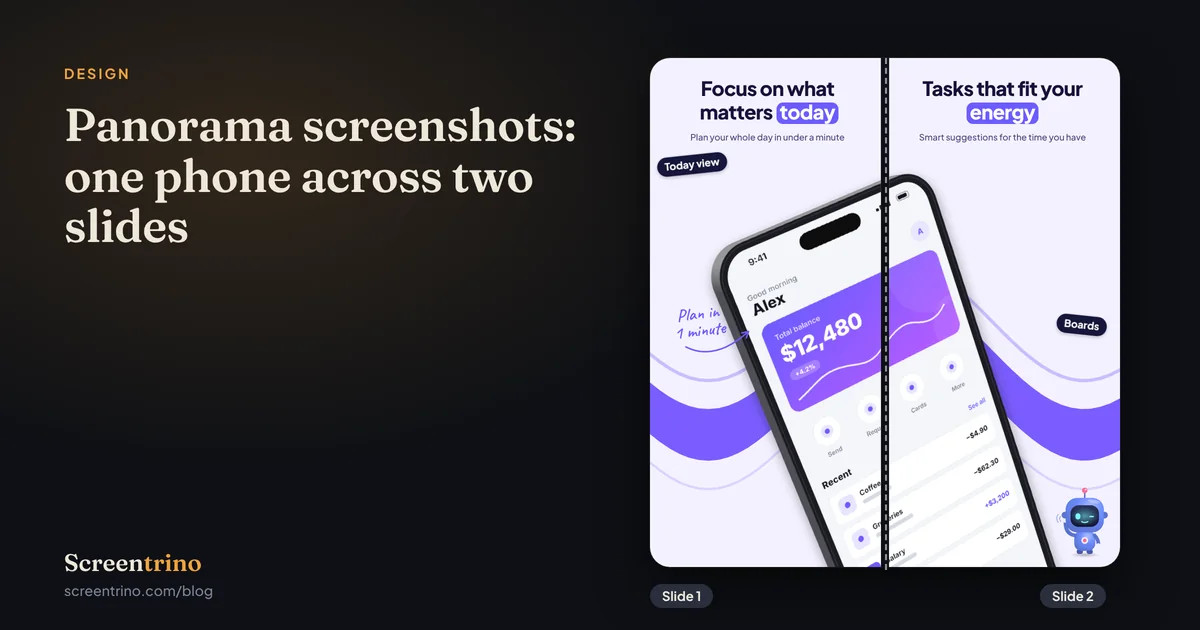
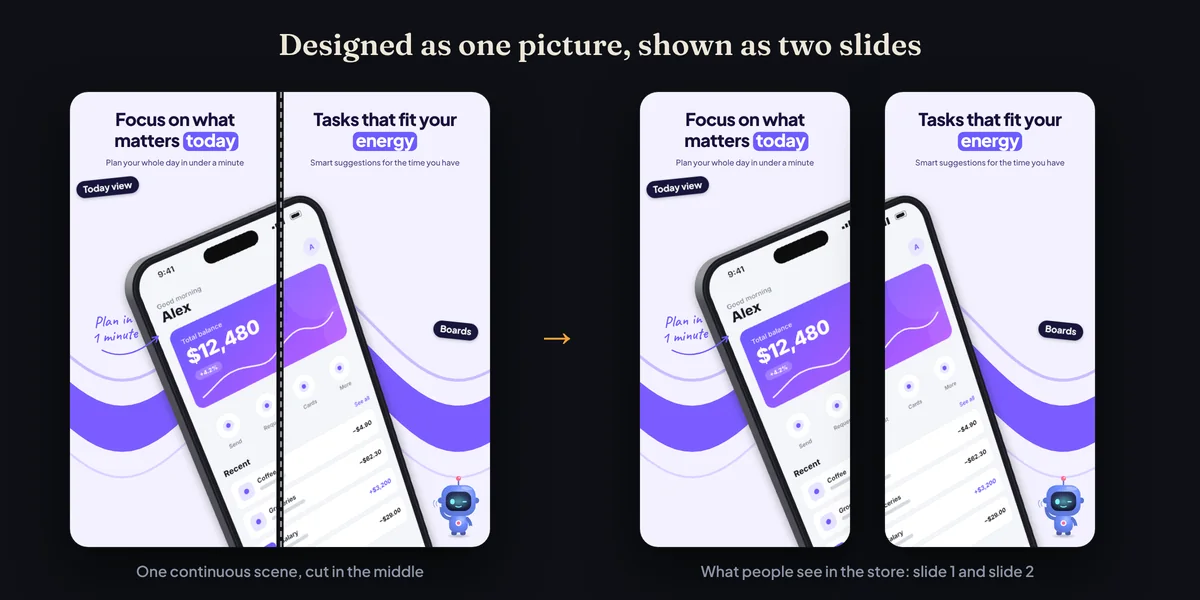
A Panorama screenshot set draws one phone, and the background behind it, across the edge of two neighbouring slides. In the store the slides sit side by side, so the pair reads as one wide picture. Use it for the opening slides, and design slide 1 so it still makes sense on its own.
In this post
What a Panorama set is
In a normal set, each slide is a separate picture. In a Panorama set, the phone from one slide continues onto the next, and the background is drawn across both, so the join disappears. The store still treats them as two screenshots, but because slides sit side by side in the listing, the pair reads as one wide artwork.
It is a simple idea, and it gives a set rhythm: a wide spread, then single slides, then another spread.
When it works well
- The opening slides. A spread is a strong way to start a set and make it feel designed.
- Showing a flow. A large phone has room for a screen and the next one it leads to.
- Standing out. Most listings are a row of identical single slides. A continuous shape across the seam breaks that pattern.
Pitfalls to avoid
- Slide 1 must work alone. Apple says the first one to three screenshots can appear in search results, depending on orientation. If only slide 1 is shown, half a phone should not look like a mistake. Put the headline and a clear focus on slide 1.
- Keep the pair together. A spread only works while its two slides stay next to each other. Decide the order before you export, and re-check it after any change.
- Do not overuse it. Too many spreads tire the eye. Screentrino’s Panorama looks use a spread, then single slides, and repeat.
- Check the real size. Look at the exported slides at the sizes in the App Store screenshot sizes guide, not only on a large monitor.
How it works in Screentrino
Screentrino has 16 Panorama looks, as part of its 101 templates. Pick one, add your screenshots, and the spreads are placed for you. Under the device controls there is an “Across two slides” option that continues the device onto the next slide at any angle, so you can join or split a pair yourself. Panorama backgrounds draw shapes such as arches, waves, bars or rings across the seam, so the join looks intentional.
The 16 Panorama templates
- Amplify dark · Music & audio
- Capsule light · Shopping
- Drift light · Health & wellness
- Frame light · Utilities
- Growth dark · Finance
- Horizon dark · Travel
- Meadow light · Food & drink
- Noir Duo dark · Finance
- Orbit bold · Education
- Paperfold light · Home & family
- Prism dark · Music & audio
- Ribbonline light · Productivity
- Rise light · Productivity
- Sunset Bleed bold · Travel
- Tidal light · Health & wellness
- Voltage dark · Fitness
Each template page shows the look and its typeface. You can also see them all on the templates page by choosing the Panorama filter.
Test it
A Panorama set is a design choice, not a guaranteed win. If you are unsure, test a Panorama set against a standard one. Our A/B testing guide explains how, and our screenshot mistakes post covers what to check first.
Ready to build your own set? Pick a look, drop in your screenshots and export every store size.
Open ScreentrinoSources
Store rules and limits checked on 19 October 2026. Apple and Google change them from time to time, so check the linked pages for the latest.
Keep reading
7 App Store screenshot mistakes (and how to fix each one)
Seven common App Store and Google Play screenshot mistakes, from wasted first slides to tiny captions, with a practical fix for each one.
How to A/B test your app screenshots on the App Store and Google Play
How Apple product page optimization and Google Play store listing experiments work, how they differ, and how to run a screenshot test properly.